This is the third post in my series on smart home technology. You may want to start with the one entitled Smart Home Starting Point.
{Disclosure: I’m providing links for these products. If, at the time of publication, the price was the same on Amazon and elsewhere, I linked to Amazon and I may get a couple of pennies in referral fees. But, Amazon doesn’t always play well with others- like they won’t list certain Google products, and they won’t show Sonos speakers that compete with Alexa. In those cases, I’m linking directly to the product page. I care a whole lot more about giving good advice than getting a couple of pennies from Seattle. Thx}
- Starting Point
- HVAC/ Thermostats
- Lighting
- Doors and Locks
- Smart Appliances
Lighting
Automated lighting is probably the very first home automation. Back in the 70’s I remember having manual timers that controlled the living room lamp, so that when we came home at night, there was at least one light on. We’ve come a long way since then. In our project house at Mintwood, I wanted to automate as much of the lighting as I could. This meant exploring a number of different lighting options. I’ve classified this in some particular groups. There are many ways to skin a cat, and this is no exception. I recognize that there are a number of products out there, and I couldn’t try them all- this is what worked for us.
Simple lamps (Wiz Lightbulbs)
Every house has lamps. Most of them benefit from being automated in some way. Whether you just want it to come on/ turn off automatically, or you want more control, there’s a connected home solution for you.
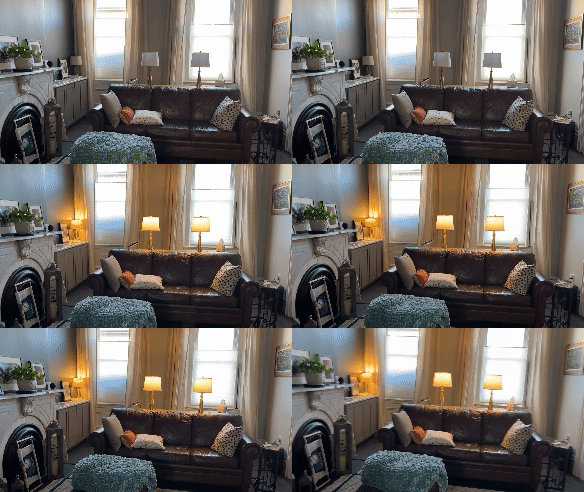
For most of our lamps, we selected Phillips Wiz lightbulbs. These are wifi enabled, LED light bulbs that fit directly into normal lamps/ fixtures. The bulb can then be connected to your local wifi and accessed via your smart home hub. Once the bulb is installed, the next step is to program the light through the Phillips App. This somewhat breaks my “simplicity rule”, in that I’m not controlling everything from one app (Google Home). Most of the features can be accessed from Google Home, but setting up timers has to be through the Phillips app. That app is easy to use, though, so it didn’t bother me. I set up a number of lamps on timers spread throughout the day. In the winter months, I tend to add times in the morning, since I’m often up before full daylight. In the summer, the lights are usually on only in the evening. Easy to do via the app.
The app also enables a lot of more advanced features. The simplest thing is changing the color of the color temperature, from 2700K to 5500K. If you’ve ever looked at a lightbulb box and wondered what “soft white” “warm white”, “daylight” “cool white”, and bunch of other variants mean, this is it. I won’t go into what I personally prefer, because everyone has their favorites. Suffice it to say that I love to be able to set this exactly where I want it. After color temp, there’s also just plain old COLOR. You can pick specific colors (blue, green yellow, etc) and also use their predefined moods, like Halloween. I do this sometimes just to make the house a little fun. The automation also can draw on all of this to shift between moods throughout the day.
In terms of connecting to Google Home, each lightbulb is then added to a room in the Google Home app, and you can control it all together. You can say “Hey Google- turn on the office lamp at 50%” and bing! there you go. It can also be made to be part of a google automation. As I mentioned in the Getting Started post, I have an automation called “good morning” that reads me the news and turns on the bedroom lights. At night, if I’m the last one up, I’ll say “Hey Google- Good night” and it will turn off every light in the house.
Lightbulb caveats
The one tidbit to keep in mind with bulbs like this is that they require power to be on to work via Google Home. It’s just like an old style timer- if you turn off the switch on the light, it doesn’t matter if the timer tries to come on- you won’t get any light. In the case of our lamps, we just leave the switch to the “on” position, and let the automation turn it on or off.
Also, it’s worth noting that Phillips also makes a different bulb called Hue. From what I can tell, they have basically the same capabilities, but they use a different technology to communicate (called Zigbee). There are pros and cons to each, but I decided for a bunch of technical reasons to stick with WiFi, so we chose Phillips Wiz. Just make sure which one you’re buying. I pick up most of mine at the Home Depot but you can also order them via Amazon.
LED Strip Lights
In addition to normal lightbulbs, most homes have some number of flourescent tubes. I’m not talking about the big 4-foot versions in your garage or workshop -I’m thinking about small units under counters or in a closet. To replace those fixtures, we used Phillips Wiz LED strip lights. Like the smart bulbs, they are configurable through a number of light temperatures and different colors. They’re also able to be automated in just the same way that the light bulbs are. In fact, our night automation routine even turns off the under-cabinet lights in our kitchen and in the laundry room. Installation is simple- just plug the transformer into any outlet, and connect it to the flexible strip of LED nodes. Then peel the adhesive cover off the back and press the strip onto the wall/ ceiling/ cabinet/ whatever. Follow the same setup process as for the lightbulbs, and you’re ready to go.
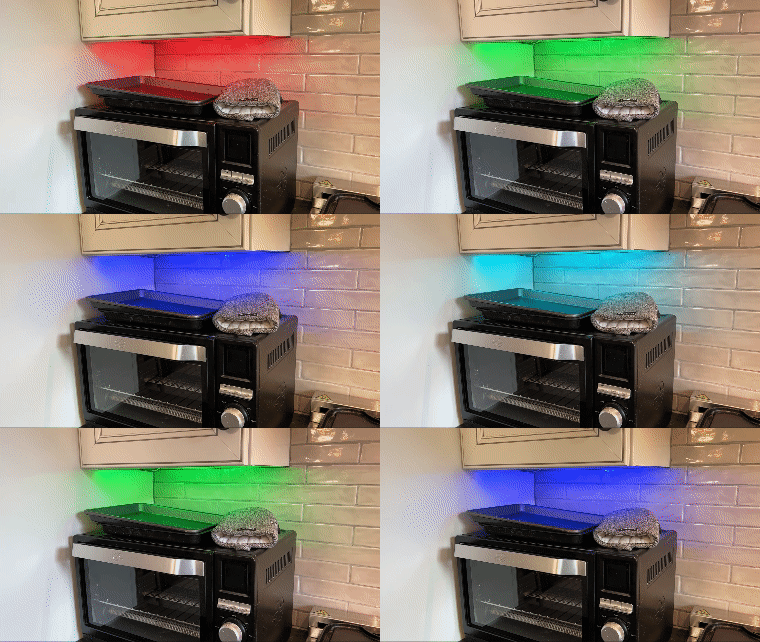
Here, the light over the toaster oven is in “party Mode”
Smart Plugs
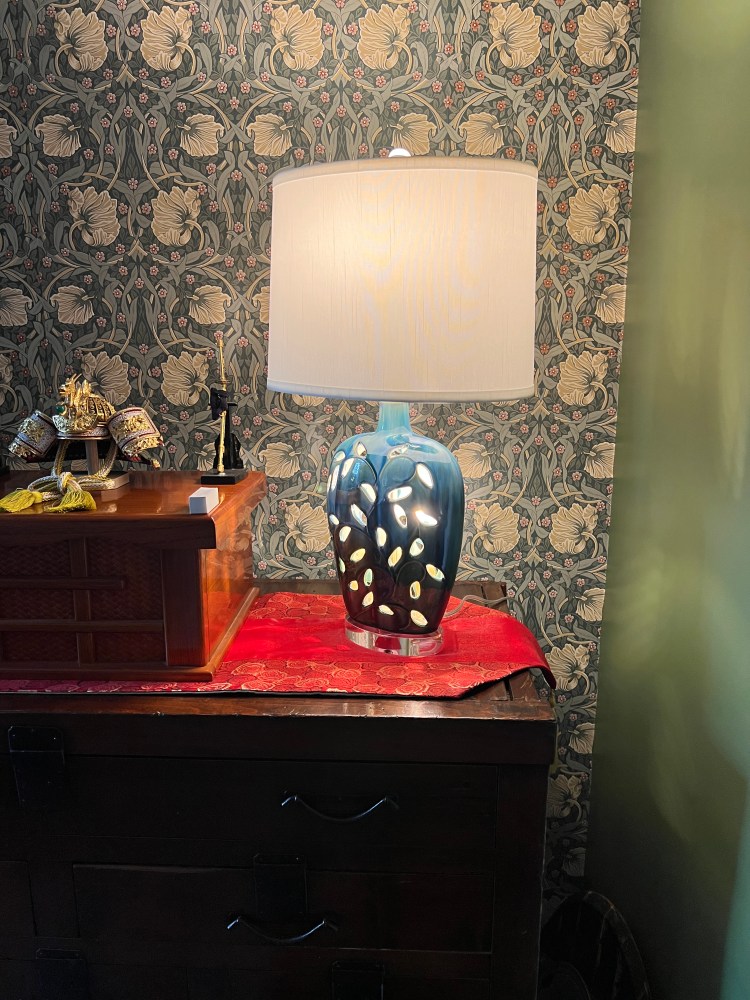
Sometimes you may not want to replace a bulb, or you have a special lamp that won’t accept a smart bulb. (We have one of these- we call it the Ginger Jar Lamp. We also have lamps with built-in dimmers that aren’t compatible with smart bulbs.). In those cases, we use a Kasa smart plug. This little box is like the plug-in timer of old, but it’s connected to your smart home. These are great, because they’re incredibly simple- just plug it in, and plug the device into the smart plug. Like the smart lightbulbs, there’s a dedicated app from the manufacturer to connect the device to your network. Once that’s done, though, you can access it easily through the Google Home application as well as through the Google Assistant feature of the smart hubs.
The other big use case for smart plugs is appliances. For example, we had a hot water recirculating pump. We wanted it to come on in the morning and the evening, so there’s hot water in the master bathroom when we’re most likely to want it. The rest of the day, though, we didn’t want it to be running. We were able to plug the pump into a smart plug, and we solved the problem. We also were able to shout out “hey google, turn on the hot water” if I came in mid-day and needed a shower. Problem solved. The only note here is that you need to make sure the plug is rated for the draw of the appliance. If ti’s a 15a appliance, make sure your smart plug can handle it. Also, I don’t recommend connecting these to anything that creates a potential danger, like a space heater. It’s just not a good idea to be triggering those devices when you’re not in the room.
For our homes, we use Kasa Smart Plugs. Since I tend to use a bunch, I’ll often buy them in 2-packs or 4-packs. They even make an outdoor-rated version to control your holiday lights. They’re reasonably priced, have a nice form factor, and we found them to be reliable in staying connected to our wifi. Also, as you’ll see below, we use Kasa wall switches, so it made the configuration process easier. Kasa was eventually acquired by TP-Link, the same company that makes our router. Although I’m sure it doesn’t hurt, we installed everything well before the acquisition, and it works with our tenants houses, where I have zero control over the router choices. I can comfortably say it would work with other routers (as long as they follow the standards, which most manufacturers will do).
Wall Switches
These smart bulbs and smart plugs are all well and good, but what about my built-in lights? Overhead lights, can lights, and even porch lights all can be automated as well. The most compelling case is for indoor “can lights”, where you might have several fixtures connected to the same switch. If you replace all of the light bulbs with smart bulbs, that cost can add up quickly. In that case, it’s much easier to install a smart switch. Smart switches come in a number of flavors. In our house, we use a mix of standard, dimmer, 3-way, 3-way dimmer, and motion detecting.
In the spirit of keeping things simple, we use Kasa switches for all of our smart switches. There were a few things I liked about them. Installation is reasonablly easy. They work with the existing Kasa application that I already had for smart switched. Price-wise, they’re pretty good- it’s less expensive to buy a Kasa smart switch than to buy a Lutron decora switch at Home Depot. That made a whole lot of sense to me. Really, the only reason we don’t have smart switches in every room is that they take up a fair amount of space in the electrical box, so you don’t want to be jamming these in next to a GFCI outlet or other smart switches. For that, you’d want to have installed a slightly larger box. (If you aren’t familiar with electrical box capacity, pls consult an electrician.)
If you’ve ever installed a dimmer switch, you’re familiar with what it’ll take to connect these to your house. it’s a replacement switch that goes into the electrical box. Of course, make sure you turn off the power before doing any electrical work. Then just take off the cover plate, take out the old switch, and put in the new one. Connect the switch following the instructions in the box. Then, you’ll need to add it to your wifi using the Kasa App. Once that is done, you can go into the Google Home app and add the switch to the appropriate room in your house. Voila!
You’ll need a live neutral in the box in order for the smart switch to work. If you don’t have a live neutral, you’re going to need to call an electrician. In a few of our properties, we’d find an old knob-and-tube switch where the original electrician ran only the hot wire to the box. Since we were rewiring anyway, it was easy enough to bring a neutral to the box. In most homes built and wired after about 1950, though, this would be really unusual.
The only other caveat is if you have a 3-way switch, the process is slightly more complex. Smart switches that are 3-way come in pairs- a primary and a secondary. You’ll need to figure out which switch gets power from the panel, and install the primary smart switch in that location. The “secondary” smart switch goes at the remote location. I’m not sure what the OSHA-approved technique is for finding the primary switch location.
<begin-safety-lecture> For legal reasons, I’m specifically telling you NOT to do what I did, and instead you should call a licensed electrician. I’m stubborn, though, so I sorted it out on my own. I turned off the breaker, and disconnected both switches completely, leaving the loose wires hanging out of the wall. They weren’t touching each other, and there was no one else at home at the time, so I knew no one else would come by and hurt themselves. Then turned the breaker back on. Using a non-contact voltage detector, I was then able to check which box had power in the wires. That was my primary location. Then I turned the breaker back off, connected both smart switches, and was able to resume the process. Again, this can be dangerous. If the loose ends of the wires touch you, either directly or via a conductor like a screwdriver, etc., you could be shocked or worse. If you don’t know what you’re doing, call a licensed electrician. <end-of-safety-lecture>
So, why do I like smart switches? For most of the same reasons I like smart bulbs. We can program them to come on or off automatically, and we can also link them into home automation routines. “Hey Google – it’s movie time!”. Poof! Out go the lights in the living room, and the hallway lights dim as well. It’s really nice. We also use smart switches in our vestibule to control the front porch light (timer) and a motion sensor inside the vestibule to come on when it detects a person and it’s dark out. There’s also a motion detector in the powder room that controls both the lights and an exhaust fan. Using the Kasa smart switch, I can even control how long they stay on after someone has left the room. The other thing I really like is being able to fully control dimmer switches from both ends of a 3-way switch. Using traditional switches, normally it is only possible to dim lights from the primary location. Smart switches solve this problem, so you can dim from either end of the setup.
When considering outdoor lights, one might ask whether it’s better to install a smart bulb in the fixture, or put in a smart switch. I’d recommend using the smart switch. We found that wifi signals don’t easily penetrate home exteriors like stucco and brick, which can lead to reliability problems with a smart bulb that is outdoors. Also, if you get extreme temperatures, that’s also not good for a smart bulb. We had problems below about 40 deg F and above 100 deg F. For these reasons, it’s a lot easier to install a smart switch to control a standard bulb in the outdoor fixture.
For completeness, I should disclose that I tried a number of other brands of smart switches. Amazon even figured out I was trying different switches, and sent me some complimentary ones to try. Unfortunately, I wasn’t happy with their performance, so I can’t recommend those. I’m quite pleased with the Kasa ones, though, and we use them across all of our rental properties as well as at home. They are easy to configure, the original kinks in the firmware are long gone, and they are reasonably priced. Also they do a good job of staying connected to our wifi, which was a significant problem for some of the other devices.
Links:
 Entropy Properties LLC